
From the Main Menu, navigate to your Settings Page.
 Then click on "Fields"
 Next to each field is a gear icon. Click onto it.
 From here, you can toggle on and off the switches that makes this field visible and editable!

How to Allow Guests to View and Edit Fields

From the Main Menu, navigate to your Settings Page.
Then click on "Fields"
Next to each field is a gear icon. Click onto it.
From here, you can toggle on and off the switches that makes this field visible and editable!
Settings
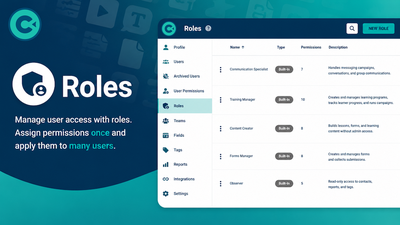
Roles help you manage user access by grouping permissions into roles that can be assigned to one or more users.
Settings
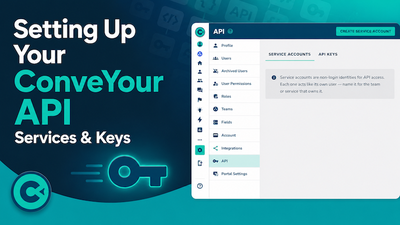
This guide walks you through creating a ConveYour API service account, generating API keys, and testing your connection using Postman.
Settings
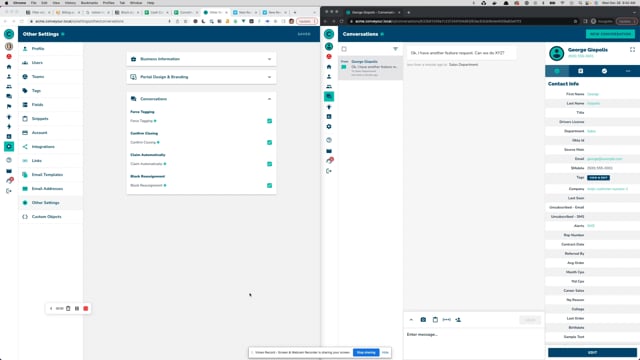
Conversation settings for better management of assignees and message tags.
Settings
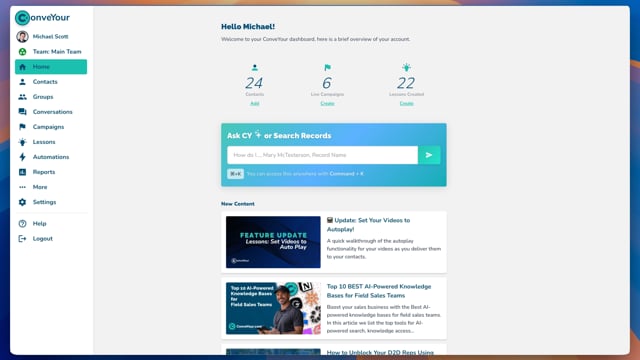
Keep track of any type of contact data with contact fields.